Make your project showcase page optimized for PC
Instapage empowers you to slash costs, skyrocket conversions, and deliver tailored experiences on PC.









 Build landing pages that get results
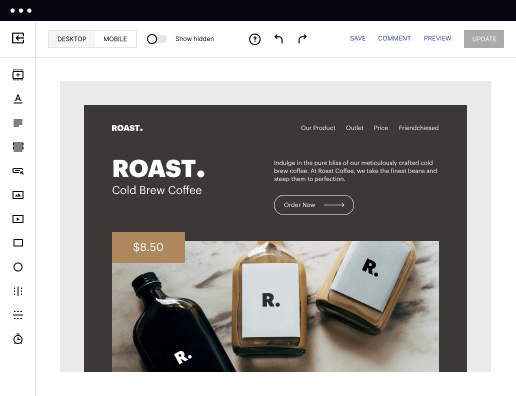
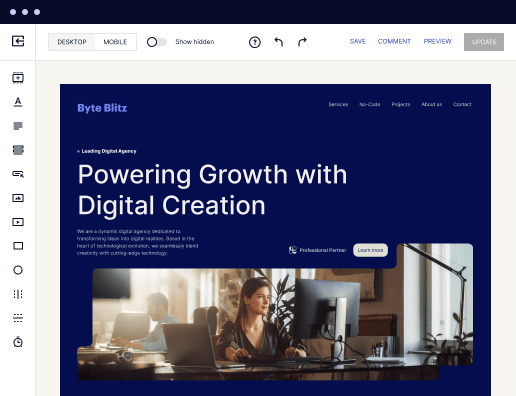
Drive ad campaign performance using targeted landing pages. With over 500+ layouts, AI-content generation, built-in collaboration, Instablocks®, and quick page load technology, you can easily create landing pages that deliver an unparalleled user experience that gets more people buying.

 Boost results through landing page optimization
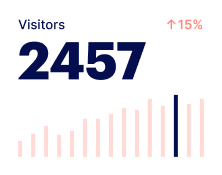
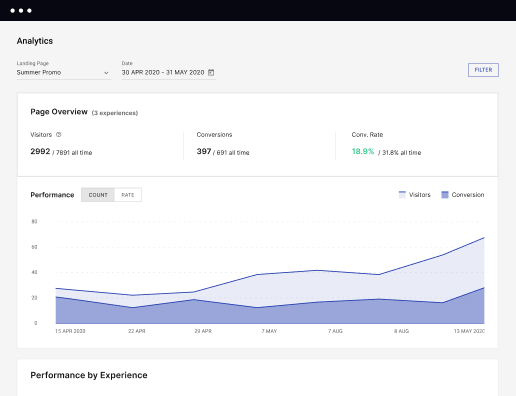
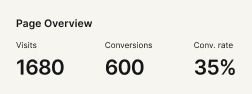
Optimize your landing pages using Instapage’s variety of testing tools. Track and analyze user behavior with heatmaps, run A/B testing to single-out the best performing version, or launch AI-assisted experiments that automatically analyze ad traffic and route it to best-performing.

 Personalize experiences for higher engagement and ROI
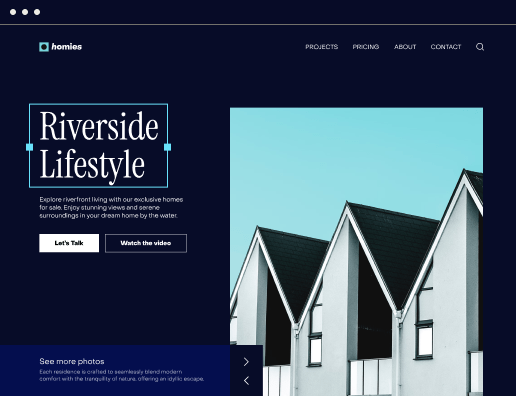
Craft unique and high-performing landing pages that align with your ad messaging and resonate with your target audience. By crafting a landing page experience that resonates with your audience, you'll engage more visitors, maximize conversions, and reduce acquisition costs.

 Maximize campaign efficiency with ad mapping
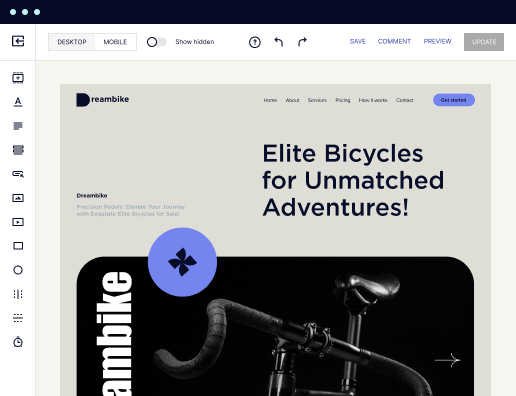
Efficiently manage campaigns by visualizing your ads and mapping them to corresponding landing pages in one place. Define what campaigns need a personalized experience and connect them with relevant ads to increase conversion rates and decrease CPA.

 Power up landing pages with AI
Instantly create high-performing content for each audience segment and separate ad campaigns with the AI assistant. From catchy headlines to converting CTAs for A/B tests – access and use AI directly on your Instapage. No more writer’s block or workflow interruptions.

 Improve alignment across your creative team
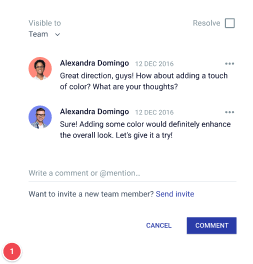
Get your campaigns off the ground faster with efficient teamwork that happens in real time. Empower your team members to provide immediate feedback, make edits to page versions, and securely share information with outside stakeholders all from a single secure space.




 Build landing pages that get resultsBoost results through landing page optimizationPersonalize experiences for higher engagement and ROIMaximize campaign efficiency with ad mappingPower up landing pages with AIBuild landing pages that get results
Create your project showcase page on PC with Instapage
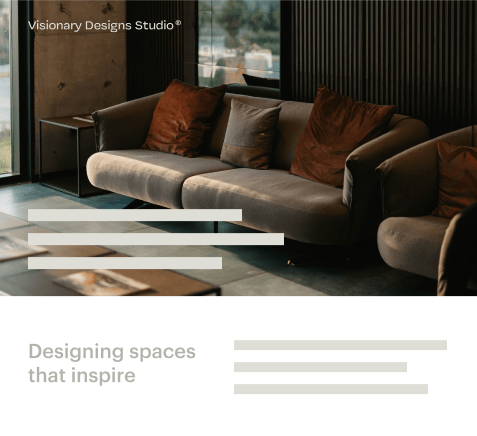
Leveraging Instapage for creating your project showcase page on PC can significantly enhance your marketing strategy. With a user-friendly interface and over 100 conversion-focused templates at your disposal, you’ll be able to build landing pages swiftly without the need for coding expertise.
Understanding the Importance of a Dedicated Showcase Page
A project showcase page allows your brand to present its work effectively, increasing visibility and trust among potential clients. It showcases your unique selling propositions and capabilities, creating a positive first impression. By utilizing Instapage, marketers can ensure that their showcase is optimized for conversions.
- Tailored content delivery: Engage your visitors with content that resonates with their needs.
- Optimized for conversion: Use built-in analytical tools to track performance and make data-driven adjustments.
- A/B testing features: Experiment with different versions of your page to find what works best.
Step 1: Designing Your Showcase with Instapage
To start your project showcase page on PC, the design phase is crucial. You’ll want to select a layout that captures the essence of your projects. Instapage offers a variety of templates that can be customized without requiring any coding knowledge.
- Choose a layout: Pick from a library of over 100 templates.
- Customize with Instablocks: Use sections pre-designed for specific content types to enhance visual appeal.
- Incorporate branding: Ensure your showcase reflects your brand’s identity through colors, logos, and typography.
Step 2: Optimizing for Audience Engagement
Once your project showcase page design is in place, optimization becomes the next priority. You can use Instapage’s heatmaps and A/B testing capabilities to understand visitor behavior better.
- Utilize heatmaps: Assess how visitors are interacting with your page to identify areas needing improvement.
- Conduct A/B tests: Experiment with different headlines and CTAs to determine which resonates better with your audience.
- Analyze user metrics: Use analytics to gauge performance and refine your approach continuously.
Step 3: Enhancing Collaboration and Feedback
Effective collaboration can expedite the creation and review process for your project showcase page. Instapage allows team members to give real-time feedback and conduct edits seamlessly.
- Real-time comments: Engage with team members directly on the page for quick turnaround on edits.
- Version control: Keep track of changes to ensure every team member is aligned.
- Secure sharing: Share your drafts with stakeholders while maintaining control over access.
Creating a compelling project showcase page on PC with Instapage involves careful design, optimization, and teamwork. By leveraging these features, you can maximize your page’s effectiveness.
Ready to boost your conversions and trust with a visual showcase of your best projects? Start creating your project showcase page on PC with Instapage today!
Get more out of Create your project showcase page on PC
Improve your Quality Score with quick load technology for landing pages
Increase conversions with content that aligns with your ads and audiences
Achieve maximum ROI by scaling your marketing initiatives

“Instapage gives us the ability to tailor our landing page content and layout to tell a unique story for each geographical target. The platform also enables us to create different variations with content that performs well for each unique channel. Every marketing team needs this!”


"Instapage has truly maximized our digital advertising performance by enabling us to offer matching, personalized experiences for every ad and audience. Now we can scale our landing page experiences as efficiently and effectively as we scale the ads themselves."


"If we have to wait on a developer, our creative velocity plummets. But Instapage has made it possible for us to exponentially grow our advertising programs and convert more customers"

Leading the way in building high-performing landing pages





FAQs
See how to create your project showcase page on pc in action
Ready to skyrocket conversions?
Supercharge your ad campaigns with high-performing landing pages.
Get started