Make your project showcase page optimized for iPhone
Instapage empowers you to slash costs, skyrocket conversions, and deliver tailored experiences on iPhone.









 Build landing pages that get results
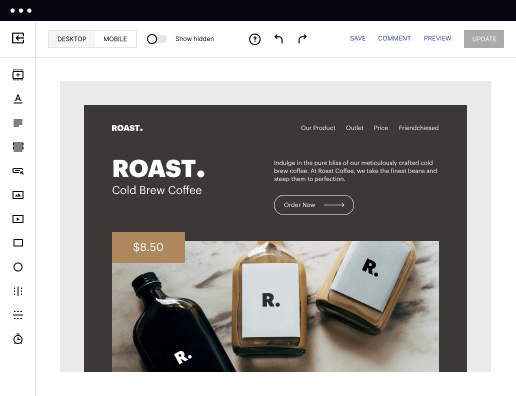
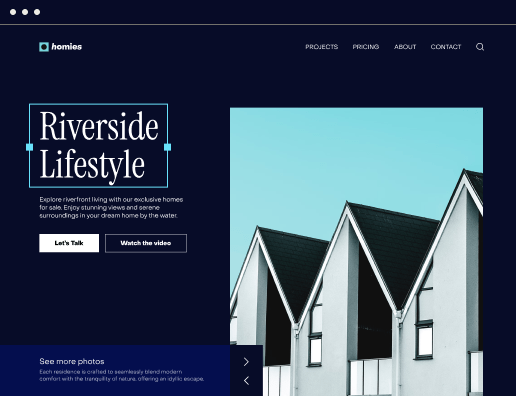
Drive ad campaign performance using targeted landing pages. With over 500+ layouts, AI-content generation, built-in collaboration, Instablocks®, and quick page load technology, you can easily create landing pages that deliver an unparalleled user experience that gets more people buying.

 Boost results through landing page optimization
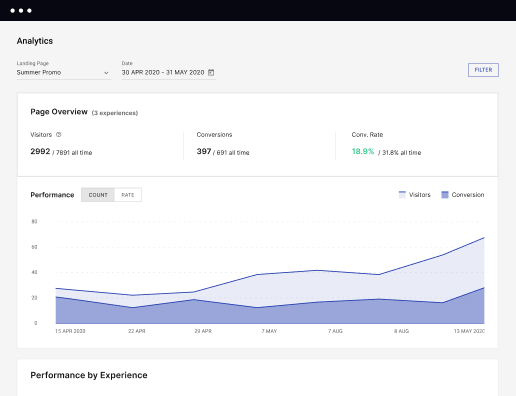
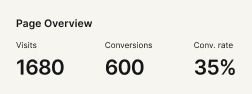
Optimize your landing pages using Instapage’s variety of testing tools. Track and analyze user behavior with heatmaps, run A/B testing to single-out the best performing version, or launch AI-assisted experiments that automatically analyze ad traffic and route it to best-performing.

 Personalize experiences for higher engagement and ROI
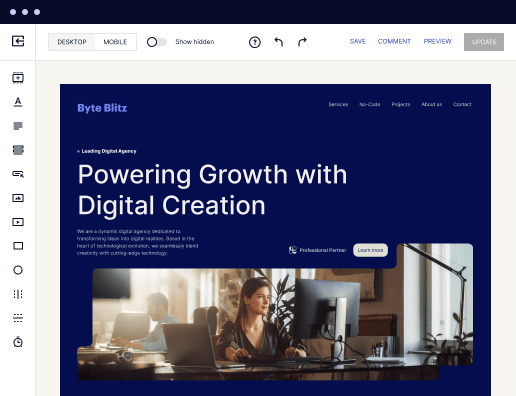
Craft unique and high-performing landing pages that align with your ad messaging and resonate with your target audience. By crafting a landing page experience that resonates with your audience, you'll engage more visitors, maximize conversions, and reduce acquisition costs.

 Maximize campaign efficiency with ad mapping
Efficiently manage campaigns by visualizing your ads and mapping them to corresponding landing pages in one place. Define what campaigns need a personalized experience and connect them with relevant ads to increase conversion rates and decrease CPA.

 Power up landing pages with AI
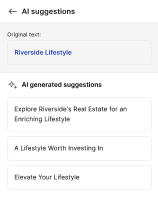
Instantly create high-performing content for each audience segment and separate ad campaigns with the AI assistant. From catchy headlines to converting CTAs for A/B tests – access and use AI directly on your Instapage. No more writer’s block or workflow interruptions.

 Improve alignment across your creative team
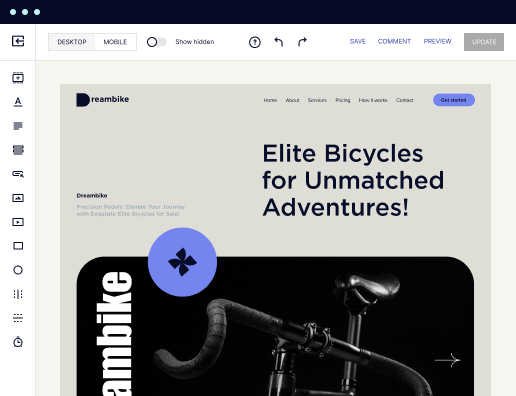
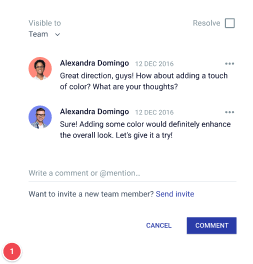
Get your campaigns off the ground faster with efficient teamwork that happens in real time. Empower your team members to provide immediate feedback, make edits to page versions, and securely share information with outside stakeholders all from a single secure space.



 Build landing pages that get resultsBoost results through landing page optimizationPersonalize experiences for higher engagement and ROIMaximize campaign efficiency with ad mappingPower up landing pages with AIBuild landing pages that get results
Create your project showcase page on iPhone with Instapage
Creating a project showcase page on iPhone using Instapage is a strategic move for businesses aiming to elevate their marketing efforts. With Instapage's extensive library of over 100 conversion-focused layouts, marketers can create visually appealing and effective landing pages tailored specifically for their audiences. This user-friendly platform offers marketers the capability to save costs while enhancing customer engagement and conversion rates.
Understanding the Benefits of a Showcase Page
A project showcase page serves as a crucial touchpoint for potential customers, particularly in industries such as tech and education. It allows you to highlight your project’s unique features and success stories, fostering brand trust and encouraging customer loyalty. Utilizing Instapage’s flexible landing page builder, you can:
- Display impactful testimonials: Featuring positive feedback creates trust and encourages new customers to engage.
- Showcase multimedia content: Enhance your page with videos and images to vividly convey your project's message.
- Implement responsive design: Ensure your showcase page is visually appealing on all devices, particularly iPhones.
Step 1: Crafting Your Project’s Message
Begin by defining the objective of your project showcase page. What story do you want to tell? Consider your target audience's needs, preferences, and pain points. A clear message will guide the design and content of your page.
Step 2: Designing Your Page with Instapage
Utilize Instapage’s intuitive design tool to build your project showcase page effortlessly. Take advantage of the following:
- Choose from pre-made templates: Select layouts specifically catered to your market segment, whether it's Business Services or Marketing.
- Use dynamic text replacement: Customize experiences for different audience segments to maximize engagement.
- Incorporate heatmaps: Analyze visitor interactions on your page to optimize for better performance.
Step 3: Optimize for Higher Conversions
After your page is up and running, it’s essential to continually optimize it for conversions. You can achieve this with Instapage’s built-in experimentation tools, which allow you to conduct A/B testing and analyze performance metrics in real-time.
- Conduct A/B tests: Experiment with different headlines or call-to-action placements to see what resonates best with your visitors.
- Monitor analytics: Use the analytics dashboard to track audience engagement and make data-driven adjustments.
- Apply feedback effectively: Use collaboration features to get input on your designs from team members or stakeholders.
In summary, creating a project showcase page on iPhone using Instapage not only enhances your marketing effectiveness but also fosters engagement and conversion with your intended audience. By following these steps, you can create a powerful platform to showcase your projects.
Ready to turn your project vision into reality? Start your journey with Instapage today and watch your conversions soar!
Get more out of Create your project showcase page on iPhone
Improve your Quality Score with quick load technology for landing pages
Increase conversions with content that aligns with your ads and audiences
Achieve maximum ROI by scaling your marketing initiatives

“Instapage gives us the ability to tailor our landing page content and layout to tell a unique story for each geographical target. The platform also enables us to create different variations with content that performs well for each unique channel. Every marketing team needs this!”


"Instapage has truly maximized our digital advertising performance by enabling us to offer matching, personalized experiences for every ad and audience. Now we can scale our landing page experiences as efficiently and effectively as we scale the ads themselves."


"If we have to wait on a developer, our creative velocity plummets. But Instapage has made it possible for us to exponentially grow our advertising programs and convert more customers"

Leading the way in building high-performing landing pages



FAQs
See how to create your project showcase page on iphone in action
Ready to skyrocket conversions?
Supercharge your ad campaigns with high-performing landing pages.
Get started